Sage Intacct JSON API Authentication
Create API Application
To connect with Agave, you must have access to the Sage Intacct Web Services Module and access to the Sage Intacct Developer Workspace (your Sage account manager can assist with this).
-
Contact your Sage Intacct account manager to enable the Web Services license. This "Web Services" license comes with a "Sender ID" and "Sender Password".
-
Navigate to https://developer.sage.com/intacct/, log in with your Sage Intacct Developer Workspace credentials, and select the Console tab:

First time using the Sage developer portal? If this is your or your IT team's first time using the Sage developer portal, follow steps 2a and 2b below. If you already have a login and are enrolled in the Sage Intacct Developer Programme, proceed to step 3.
2a. Create a Sage ID. On the login page, click Sign up. You can use any work email — we recommend a shared or role-based address (e.g.
it-admin@yourcompany.com) rather than a personal one, so the account doesn't get orphaned if someone leaves. When prompted, create a workspace and name it after your company.2b. Enroll in the Sage Intacct Developer Programme. From the Console, go to Applications and click to create a new application. If you see an Enroll to unlock button, click it, then click Enroll on the page that opens.


A dialog will appear asking for your Intacct Web Services License Key — this is your Sender ID referenced in step 1. Paste it in and click Enroll.

Once enrollment is confirmed, continue with step 3 below.
-
Select Applications on the sidebar and create a new application.

-
Select the Sage Intacct API.

-
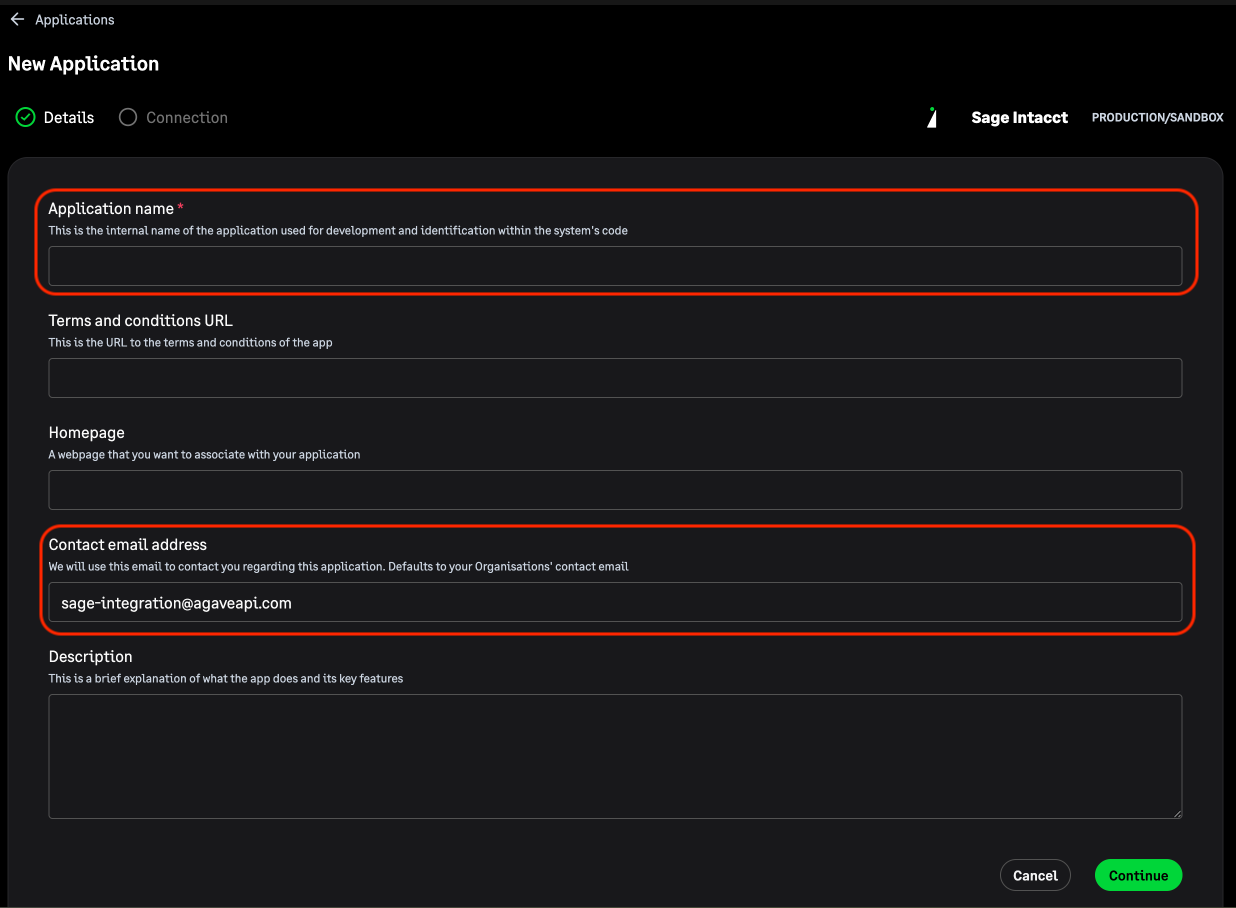
Enter "Agave Customer" as the Application Name and the your email address as the Contact Email Address.
-
Enter https://app.agaveapi.com/link/oauth-callback as the "redirect URI", set "Client Scope" to production, and your Sage Intacct Web Services "Sender Password" for the password. You can leave the "Async Callback URI" and "Allowed Origin Domains" blank.

-
Upon completion, you should recieve a GUID, Client ID, and Secret Key.

-
Open Sage Intacct at the top level entity and navigate to Company > Setup > Company > Security.

-
Under Authorized client applications, click Add then populate the Client ID from the previous step along with a description, leaving the Web Services user ID field blank, then hit Save.

-
Share the GUID, Client ID, and Secret Key with your Agave implementation team to finish your authorization.